Workflow Execution
Once a workflow is published and linked to a service offering, it runs automatically when requests come in. This guide explains how workflows execute, the different execution modes, and what happens at each stage.
How a Workflow Starts
A workflow starts when one of these events occurs:
- A request is submitted to a service offering that has a linked workflow.
- A request is accepted from an inbox that triggers a workflow on acceptance.
- A manual trigger — an admin clicks Run Workflow on a workflow's detail page. The Run modal lets you set the instance title, input variables, and optionally override the workflow's default responsibility matrix for this one run.
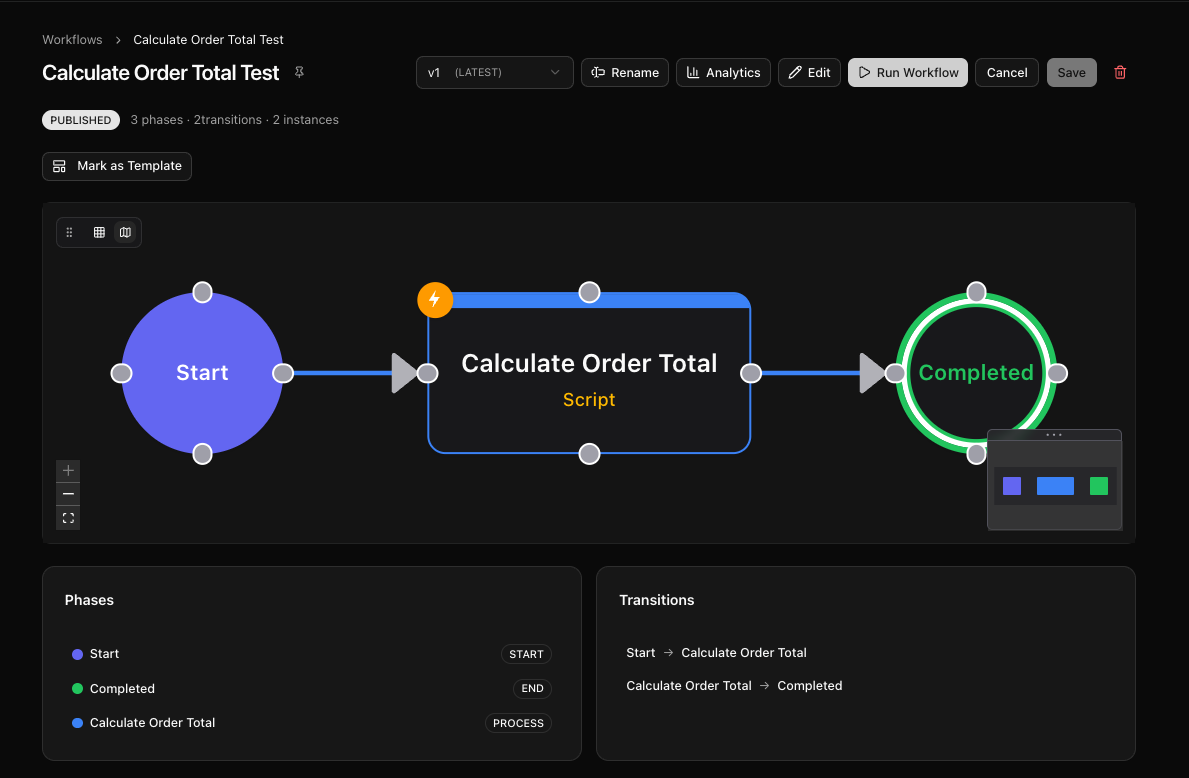
The system creates a new workflow instance based on the latest published version of the workflow. This instance tracks the request's progress through each phase.
Who Handles Each Phase (Responsibilities)
Nembl doesn't split phases into "manual" vs "automated" modes. Instead, every phase has responsible parties — users, agents, teams, or groups assigned through the responsibility model. What happens when a phase activates depends on who is responsible:
| Responsible parties | Phase behavior |
|---|---|
| All agents (no human Responsible or Accountable) | Fully automated — the agent executes at its configured autonomy level and advances the phase if allowed |
| Mix of humans and agents | Agents contribute (analysis, drafts, suggestions) but do not advance; humans review and advance |
| Humans only | The phase waits for a human Responsible, Accountable, or Backup to complete it |
Agent autonomy levels
When an agent is assigned, its autonomy level determines what it can do without human intervention:
- Suggest — proposes actions for human review
- Act with approval — executes safe actions immediately, gates risky actions for approval
- Fully autonomous — executes all configured actions and advances the phase
Configure per-assignment in the Responsibility editor on the phase. The agent is also bound by your IAM policies, so even a fully-autonomous agent can only take actions the linked IAM Role allows.
Typical patterns
- Human review (approval gate) — assign a user as Approver; use an APPROVAL phase type so the worker view shows explicit Approve/Reject buttons.
- Autonomous processing (data transform, enrichment, routing) — assign an agent as Responsible with Fully Autonomous.
- Agent drafts, human finalizes — assign an agent as Consulted (to analyze and comment) and a user as Responsible (to review and advance).
- Physical work — assign a team or user as Responsible; they complete tasks that represent the real-world work and advance the phase when done.
Automated Phase Types
When a phase has only agents responsible (no humans), it runs automatically as soon as it activates. Each automated phase picks one Automation Type that determines what work it does. All automated phases run on Nembl's serverless executor — there is no infrastructure to set up.
Timer
Pause the workflow for a fixed duration before continuing. Useful for SLA windows, cooldowns, and scheduled follow-ups.
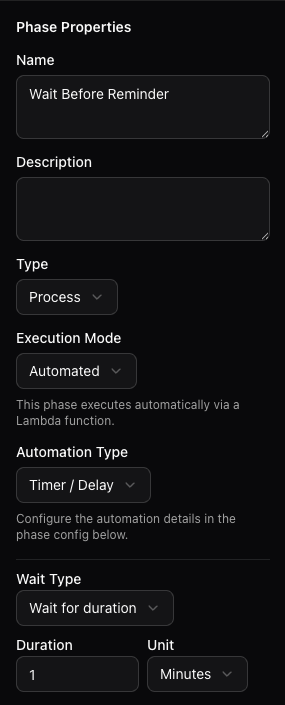
- Wait Type — wait for a duration (minutes/hours/days) or until an absolute time
- The workflow stays on the phase until the timer fires; cancelling the workflow before then deletes the pending timer
Webhook Callout
Send the workflow's variables to an external HTTP endpoint and merge the response back. Use this to notify Slack/Discord/PagerDuty, hit a custom webhook, or call a service that doesn't need authentication.
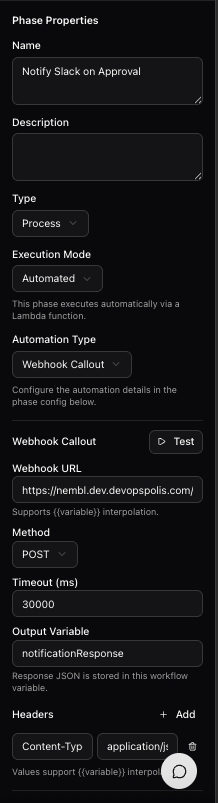
- Webhook URL supports
{{variable}}interpolation - Method — POST or PUT
- Output Variable — the response is stored on the workflow under this name
- Headers — optional custom headers (values support interpolation)
For services with strict body shapes (Slack, Discord), use the bodyTemplate config field to send a custom JSON payload instead of Nembl's default shape.
Script
Compute a value from existing workflow variables using a sandboxed expression. The expression engine is mathjs — fast, safe, and deterministic. Good for math, string manipulation, conditional values, and small lookups.
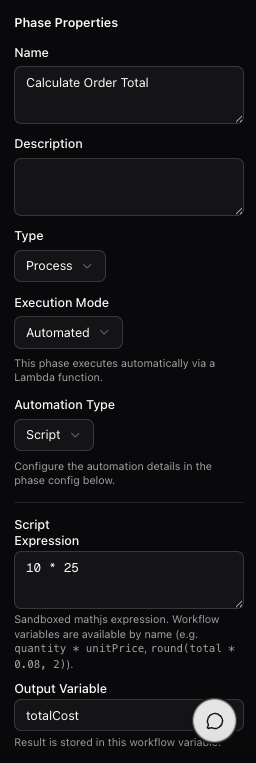
- Script Expression — mathjs syntax (
quantity * unitPrice,round(total * 0.08, 2), etc.) - Output Variable — where the computed value is stored
Workflow variables are available by name. No arbitrary JavaScript runs — only the mathjs expression language.
API Call
Call an authenticated REST API. Like Webhook Callout but adds support for connectors (stored credentials in a Nembl Vault) and richer auth flows.
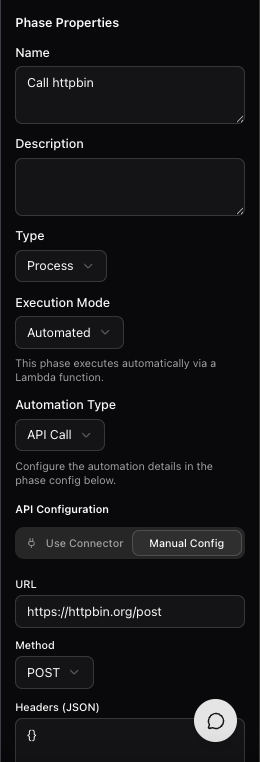
- Use Connector — pick a pre-configured connector with credentials
- Manual Config — provide URL, method, headers, and a body shape inline
- The response merges into workflow variables under the configured Output Variable
Data Transform
Apply a built-in data operation to a variable: filter, sort, sum, average, validate, transpose, or run a mathjs expression. Use this when you need to reshape data between phases without writing custom code.
- Sub-type — picks the operation (filter, sort, enrich, sum, average, min, max, validate, transpose)
- Source Array / Field — for aggregate and filter operations
- Expression — for the
enrichsub-type (mathjs)
Timer Delays
You can add a timer delay to any phase to introduce a waiting period before the phase starts or after it completes. Timers are useful for:
- Waiting periods — Give someone 48 hours to respond before escalating.
- Scheduled actions — Send a reminder email three days after a request is submitted.
- Cool-down periods — Wait 24 hours after approval before executing a sensitive action.
To add a timer, open the phase settings and configure the delay duration.
What Happens During Execution
As the workflow runs, here is what happens at each stage:
Phase Activation
When a request reaches a new phase, the system:
- Records the phase start in the request timeline.
- Creates any tasks defined by the phase's task templates — including any prerequisite ordering between them, so a task that depends on another (for example, on an approval gate) starts out blocked until its prerequisites complete. Completing a gate unblocks the tasks after it within the same phase, without advancing the phase. See Ordered gates within a phase.
- Resolves responsible parties (expanding teams and groups), honoring per-assignment notify flags.
- Notifies human users and dispatches any agents assigned as Responsible or Accountable.
Phase Completion
A phase completes when a party with the advance permission acts on it — typically the Responsible, Accountable, or Backup party. For APPROVAL phases, the Approver clicks Approve or Reject. For fully-autonomous agent phases, the agent advances the phase itself once its work is done.
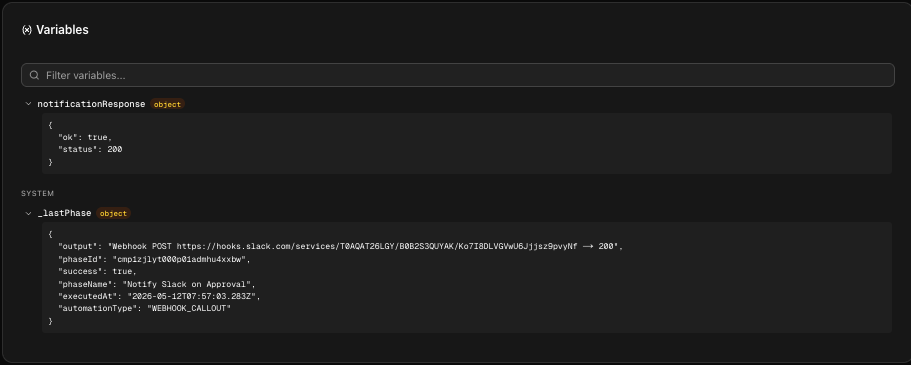
For automated phases, the executor's result is stored on the workflow instance — both under the configured Output Variable and as a _lastPhase summary you can inspect on the instance's Variables panel.
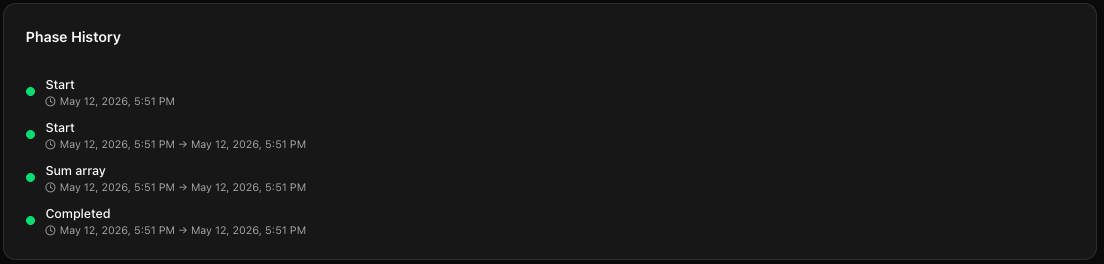
The Phase History panel shows every phase the workflow has entered, with timestamps for entry and exit:
Transition to Next Phase
After a phase completes, the workflow follows the outgoing transition to the next phase. If the next phase is a Decision, the conditions are evaluated to choose the correct path. If it is a Parallel, all parallel paths start simultaneously.
Workflow Completion
The workflow finishes when the request reaches an End phase. At that point:
- The request status is updated to Completed.
- The requester is notified.
- All workflow metrics (duration, phase times) are recorded.
Cancellation
When you cancel a running workflow, Nembl checks whether the workflow has a Cancel node in its design:
- With a Cancel node — the instance routes to the Cancel node, which can have its own cleanup tasks (e.g. "Notify requester", "Release resources"). Completing those tasks finalizes the cancellation. You can also Resume the workflow from the Cancel node to return to the previous phase — useful when a cancellation was a mistake.
- Without a Cancel node — the instance terminates immediately with status CANCELLED.
Subprocess workflows are cancelled alongside their parent when the parent is cancelled.
Versioning During Execution
Workflows are versioned. When you publish a workflow, a new version is created. Important rules:
- In-progress requests continue using the workflow version they started with. They are never affected by changes to the workflow.
- New requests always start with the latest published version.
- You can edit and publish new versions at any time without disrupting active requests.
This means you can improve your workflows continuously without worrying about breaking requests that are already being processed.
Monitoring Active Workflows
Administrators can monitor running workflow instances from Admin > Workflows. For each active workflow, you can see:
- How many requests are currently in progress.
- Which phase each request is in.
- How long requests have been in their current phase.
- Whether any requests appear stuck or overdue.
If a request is stuck, an administrator can manually advance it to the next phase or reassign the current task.